Card Accounting Automations help you streamline month end coding by automatically applying the right accounting details to every transaction made on a specific card.
When you set up card automation rules, Float will automatically attach fields like GL codes, tax codes, vendors, and other accounting fields to transactions on that card. This reduces manual work, improves consistency, and makes month end smoother.
For more information on Accounting Automations, please see:
Automating Accounting with Transaction Rules
Guide Overview
Who can configure Card Accounting Automations?
How to configure Accounting Automations on the Cards page
How to configure Accounting Automations when creating a Card
How to remove Accounting Automations from a Card
How Card Automations work with Transaction Rules
Who can configure Card Accounting Automations?
Only users with the following roles can create card automation rules:
- Primary Administrator
- Administrator
How to configure Accounting Automations on the Cards page
To set up accounting automations on a card as an Administrator or Primary Administrator:
- Log in to your Float account at app.floatfinancial.com.
- Navigate to the Cards page > Use the filters to find the card > Select the card to open the card details page
- Scroll down to the Accounting Automations section.
- Set the automations you want to apply (you do not have to set all of the fields, only the ones needed):
- Description
- GL code
- Accounting vendor
- Tax code
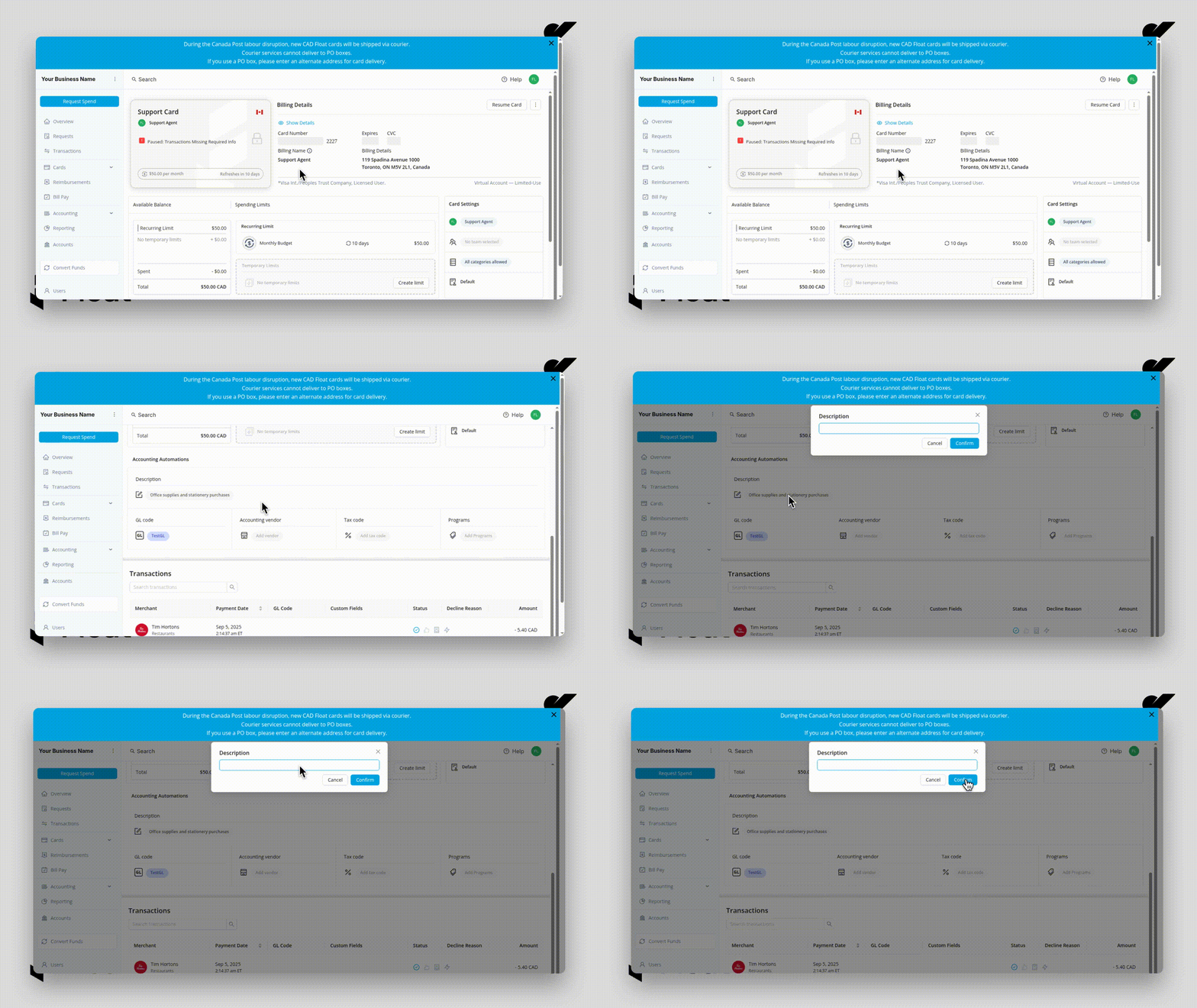
- Click Confirm after each field to save your changes.
Once set, all future transactions on this card will be automatically coded using the accounting automations configured. Cardholders, Administrators, and Bookkeepers can still adjust these values on each transaction if needed.
How to configure Accounting Automations when creating a Card
- Log in to your Float account at app.floatfinancial.com.
- Navigate to the Cards page > Select "Create Card"
- After entering the required information, scroll down to the Auto-fill transaction details section.
- Set the automations you want to apply (you do not have to set all of the fields, only the ones needed):
- Description
- GL code
- Accounting vendor
- Tax code
- Click "Create Card"
Once the card is created, all future transactions on this card will use these automation settings by default, but the cardholder, Administrators, and Bookkeepers can edit the populated values on individual transactions.
How to remove Accounting Automations from a Card
- Log in to your Float account at app.floatfinancial.com.
- Navigate to the Cards page > Use the filters to find the card > Select the card to open the card details page.
- Scroll down to the Accounting Automations section.
- Select the automation you want to remove.
- Uncheck the box beside the field.
- Click Confirm to save your changes.
Once removed, transactions on this card will no longer auto-fill that field. Cardholders, Administrators, and Bookkeepers can still code it manually on each transaction.
How Card Automations work with Transaction Rules
Card automation rules take precedence over transaction rules.
If both a transaction rule and a card automation rule are configured, the transaction will be coded according to the card rule. This makes card automations especially powerful when:
- Cards are created for specific purposes (for example, "Marketing Subscriptions" or "Sales Travel")
- You want transactions on those cards to be auto-coded with the same GL codes, tax codes, vendors, and other accounting fields
This is one of the most effective ways to automate month-end coding, since transactions on purpose-built cards can be fully auto-coded based on the settings you configure.
For more information on Transaction Rules, please see: What Are Transaction Rules & How Can They Be Set Up?