With Float’s Bill Pay, approvers will automatically receive notifications to quickly inform them that a bill requires attention. These notifications are sent out via email, or Slack (see: How to Connect Float to Slack).
Here is a breakdown of the notifications and set up process you can expect to receive as an Approver with Float’s Bill Pay:
How to Set up Bill Pay Approval Notifications
How to Set Up Bill Pay Approval Notifications
Setting up Bill Pay approval notifications in Float is simple:
- Log in to Float as an Administrator and go to Settings > Business Notifications > Bill Pay
- Select Optional, Required, or Disabled using the toggle buttons
- If selecting Disabled, review the confirmation prompt and confirm your selection
Changes take effect immediately. Users will see the updated state in their notification preferences right away. For more details, see: How to Manage Business Notifications for the Entire Business
For users to update their own personal Bill Pay notification settings:
- Go to Settings > Notification Settings
- Locate the notification topic you want to update — use the section headers (Cards, Reimbursements, Bill Pay, etc.) to find it
- Toggle the channel on or off using the switch next to the channel name
- Changes save automatically.
For more details, see: How to Manage Your User Notification Preferences
Real-Time Updates
Notifications are sent in real-time, ensuring that approvers are quickly informed of pending bills, which helps expedite the approval process.
Email Notifications
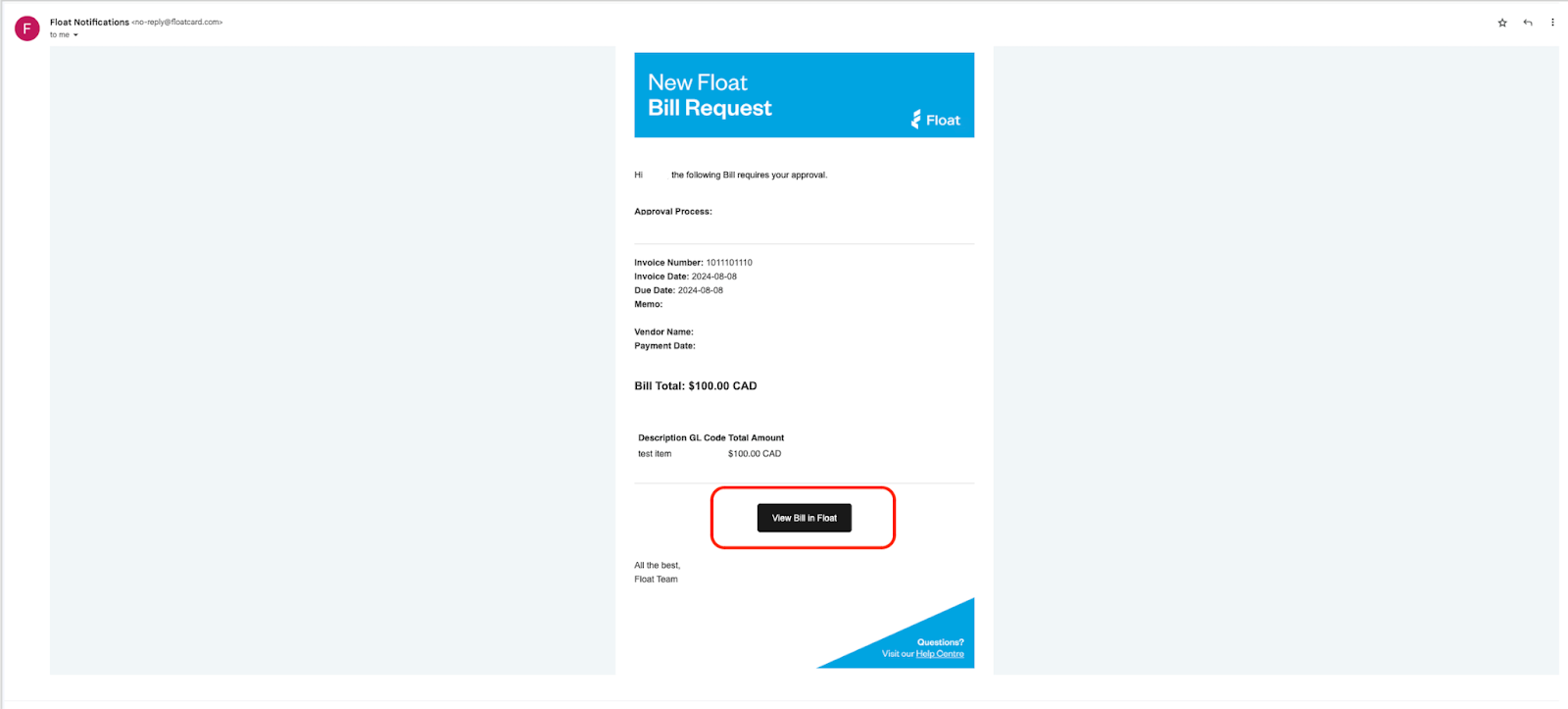
When a bill is submitted for approval, the designated approvers will receive an email notification. Within the email, you can find a direct link that takes you to the Bill Pay page of your Float account.
By clicking the “View Bill in Float” button, approvers can quickly review and action the bill as needed.
Slack Notifications
If you use Slack, your Administrator can choose to set up an integration which will allow you to get notifications right within your Slack app. These alerts work just like email notifications and include a link to view the bill in Float before approving it.
For those who use Slack often, this integration makes it even easier to get notified before approving a bill.
For more details, see: Connecting Float to Slack and Configuring Notifications